Clusters
Manage Kubernetes clusters across cloud providers from a single interface.
Supported Platforms
- Amazon EKS
- Google GKE
- Azure AKS
Creating a Cluster
- Go to Clusters
- Click + New Cluster
- Choose provider and region
- Configure node size, count, and network settings
- Click Create
Monitoring
View real-time metrics:
- CPU/Memory usage
- Pod status
- Node health
AWS(EKS)
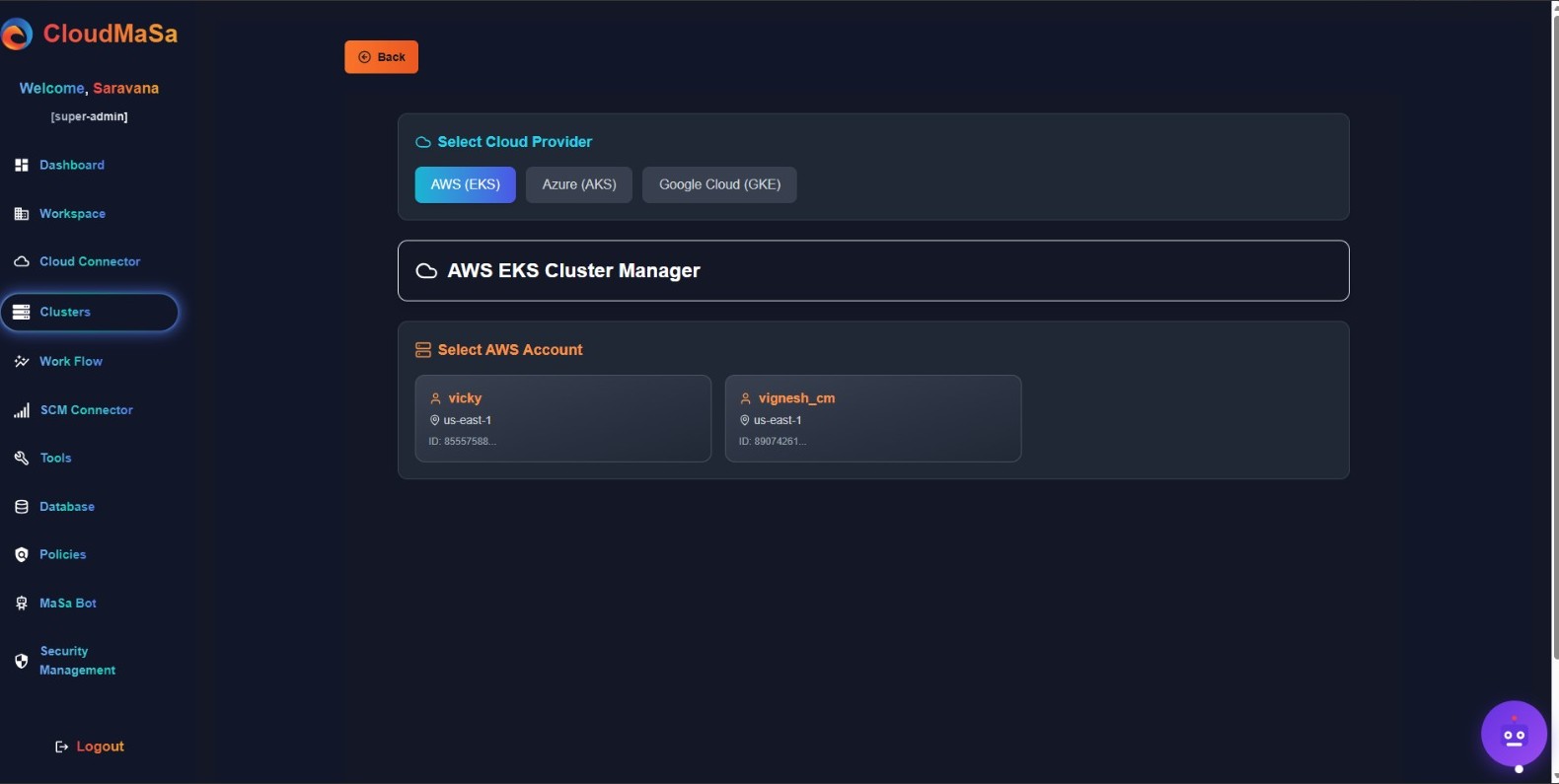
Choose AWS (EKS) to manage your Elastic Kubernetes Service clusters. CloudMaSa displays all AWS accounts configured under your workspace — including IAM user or role names, regions, and account IDs.
Each account card shows:
- Account identifier (e.g.,
Eragon,eragon_cm) - Region (e.g.,
us-east-1) - Account ID (for reference)
Click any account to load its associated EKS clusters — including status, Kubernetes version, and node group details.
Ensure your AWS IAM credentials have “AmazonEKSClusterPolicy” and “AmazonEC2ReadOnlyAccess” roles assigned — this allows CloudMaSa to discover and manage clusters without manual intervention.
This is the central hub for viewing, filtering, and accessing your AWS EKS environments.
Azure(AKS)
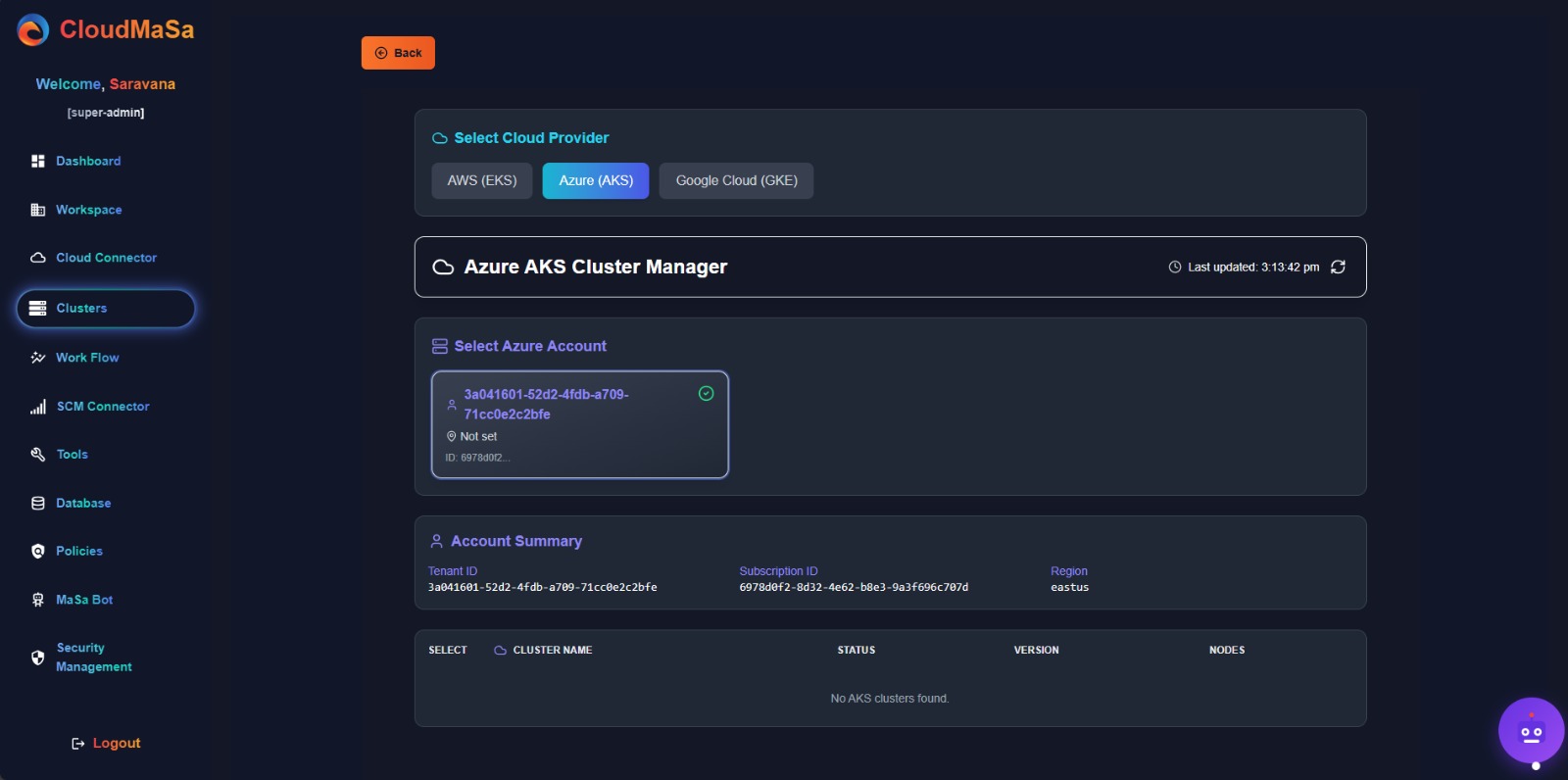
Start by selecting Azure (AKS) from the cloud provider options. Once selected, CloudMaSa loads all connected Azure accounts and displays their Tenant ID, Subscription ID, and region.
You can:
- Switch between accounts using the selector card
- View account summary details (Tenant, Subscription, Region)
- See a list of existing AKS clusters (if any) with status, version, and node count
If no clusters appear, ensure your Azure service principal has the “Reader” role on the subscription and that the cluster is registered in the same region.
This interface is the starting point for managing, deploying, or connecting to your Azure Kubernetes Service clusters.
GCP(GKE)
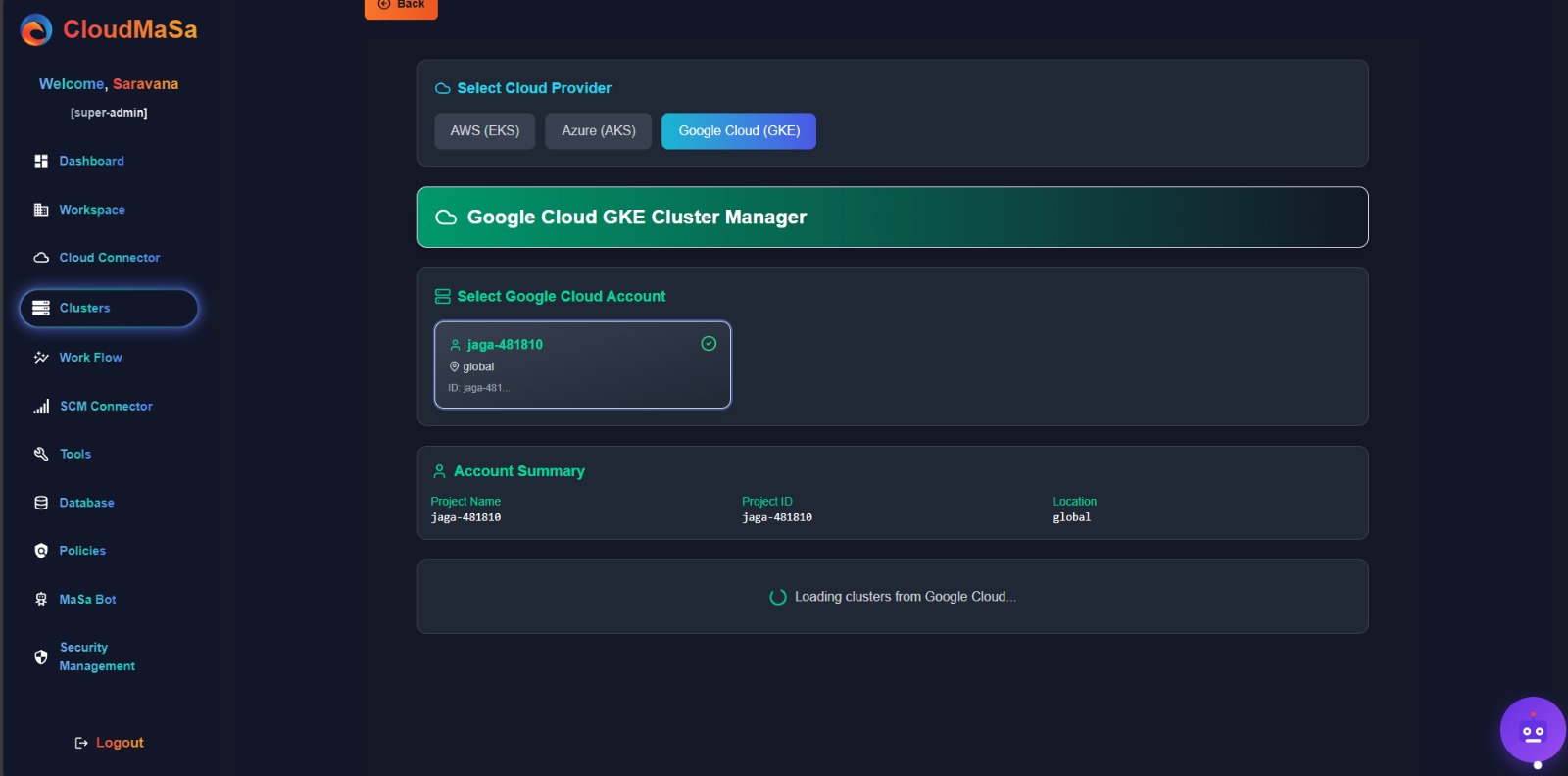
Select Google Cloud (GKE) to access your connected GCP projects. CloudMaSa automatically detects and lists all available projects linked to your service account.
You’ll see:
- Project name and ID
- Location (e.g.,
global,us-central1) - Real-time status: “Loading clusters from Google Cloud…”
Once loaded, you’ll see a table of all GKE clusters — including their names, statuses, versions, and node pools.
Make sure your service account has at least “Viewer” permissions on the project. For deployment, you’ll need “Editor” or higher.
This view gives you full visibility into your GKE infrastructure before making changes or creating new clusters.
💡 Clusters are automatically backed up daily. Restore from Settings > Backups.