aws
Automate your AWS infrastructure with a guided, visual workflow — no CLI, no Terraform files, no guesswork.
The AWS Cloud Workflow in CloudMaSa walks you through a 5-step process to securely connect, configure, and deploy AWS resources in minutes. Whether you're provisioning an S3 bucket, launching an EKS cluster, or setting up a full CI/CD pipeline, everything is done through an intuitive UI that generates production-ready Infrastructure-as-Code behind the scenes.
All deployments are:
- Secure: Credentials encrypted, least-privilege enforced
- Auditable: Full IaC preview before deployment
- Cost-aware: Real-time pricing estimates
- Reusable: Save configurations as templates for your team
Let’s walk through each step.
How It Works
The AWS workflow is divided into 5 simple steps:
1. Connection - Connect to your cloud account
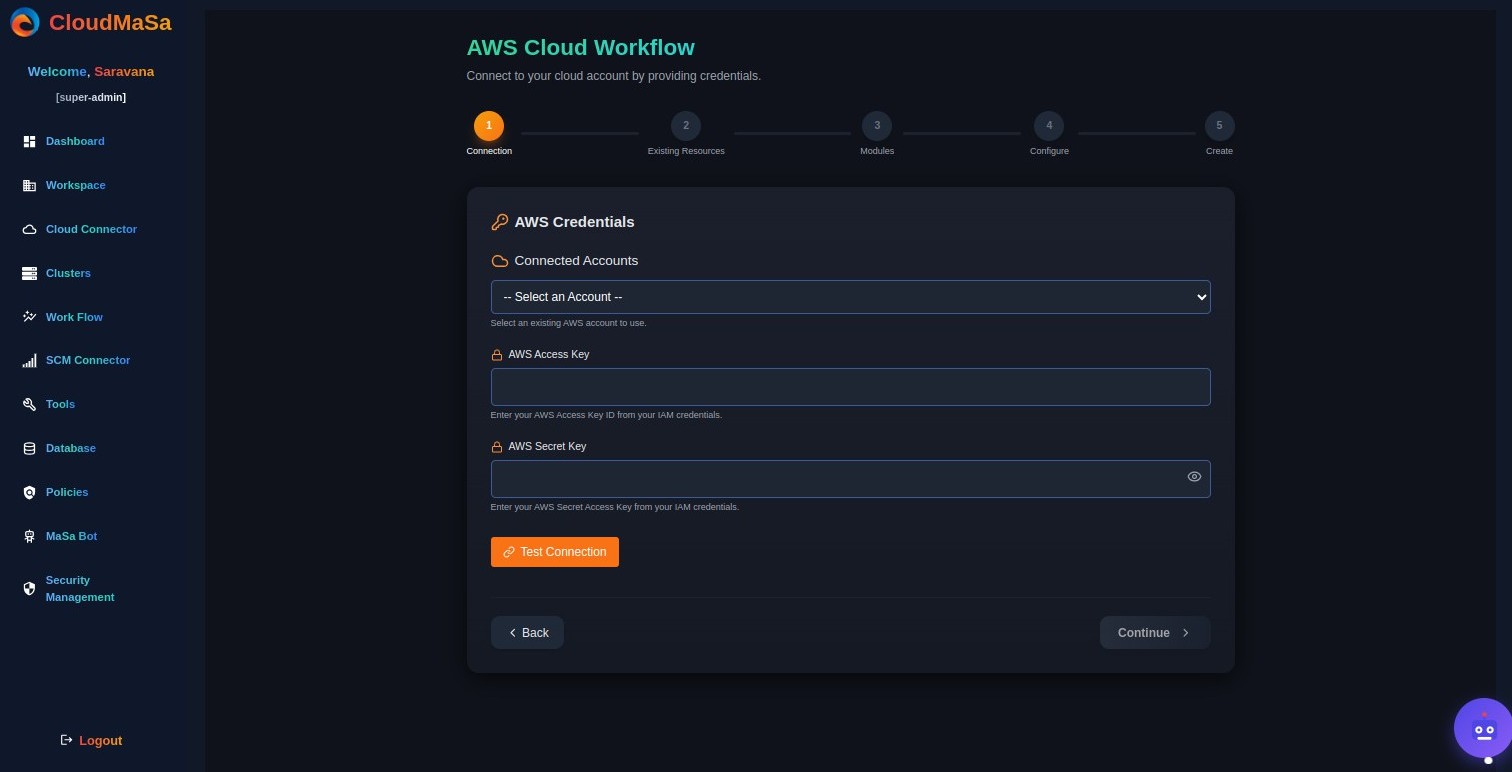
Start by securely connecting CloudMaSa to your AWS account. This one-time setup enables full infrastructure automation without leaving the platform.
Here’s what you’ll do:
- Select AWS as your cloud provider
- Choose an existing connection or enter new IAM credentials: Access Key ID Secret Access Key
- Click Test Connection to verify permissions instantly
- Save the connection for future workflows
2. Existing Resources - View resources already deployed via IaC (Terraform)
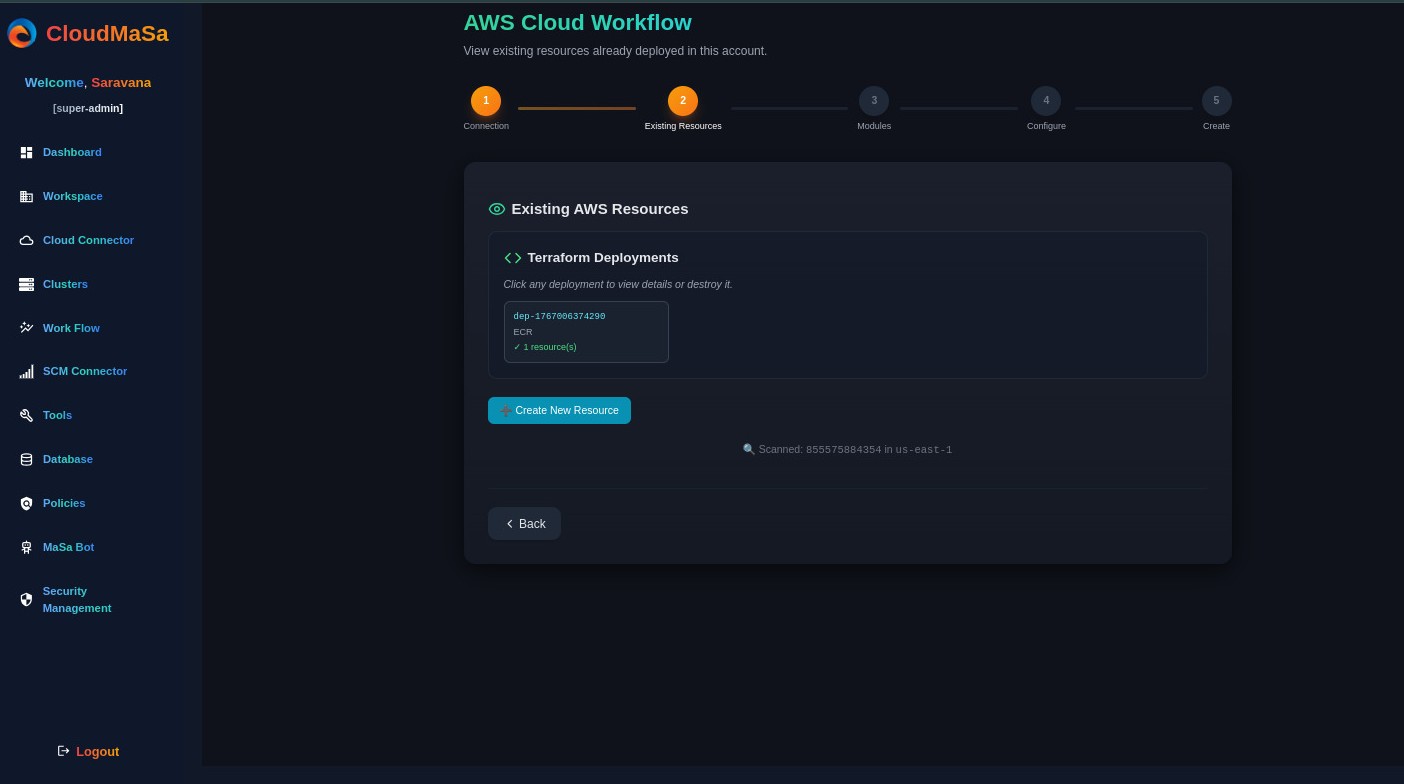
Before you build anything new, CloudMaSa helps you see everything already deployed in your AWS account — no more hunting through consoles or CLI tools.
This screen shows:
- All Terraform-managed deployments (like dep-1767006374290)
- Resource type (e.g., ECR) and count
- Click any deployment to view details, logs, or destroy it safely
- “Create New Resource” button to start fresh with a clean slate
3.Modules — Select which cloud resources to deploy
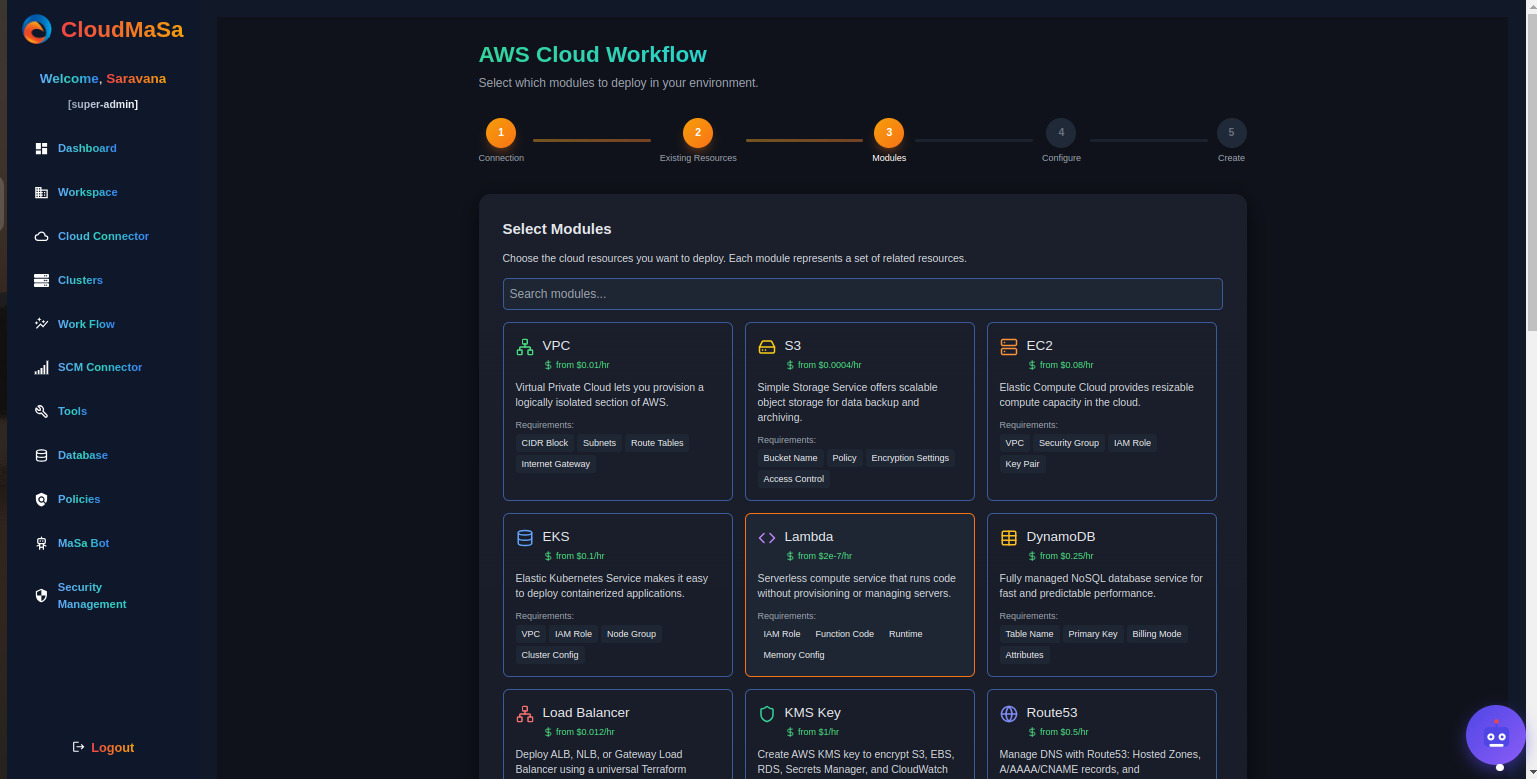
Once connected, choose from a curated library of pre-built, secure, and scalable modules — each representing a set of related AWS resources.
These modules are designed to follow AWS best practices and can be deployed individually or combined to build complex architectures.
Search bar to filter modules by name (e.g., “S3”, “EC2”, “Lambda”)
- Module cards showing:
- Name & icon
- Estimated hourly/monthly cost
- Short description
- Required dependencies (e.g., VPC, IAM Role)
4. Configure - Customize module settings
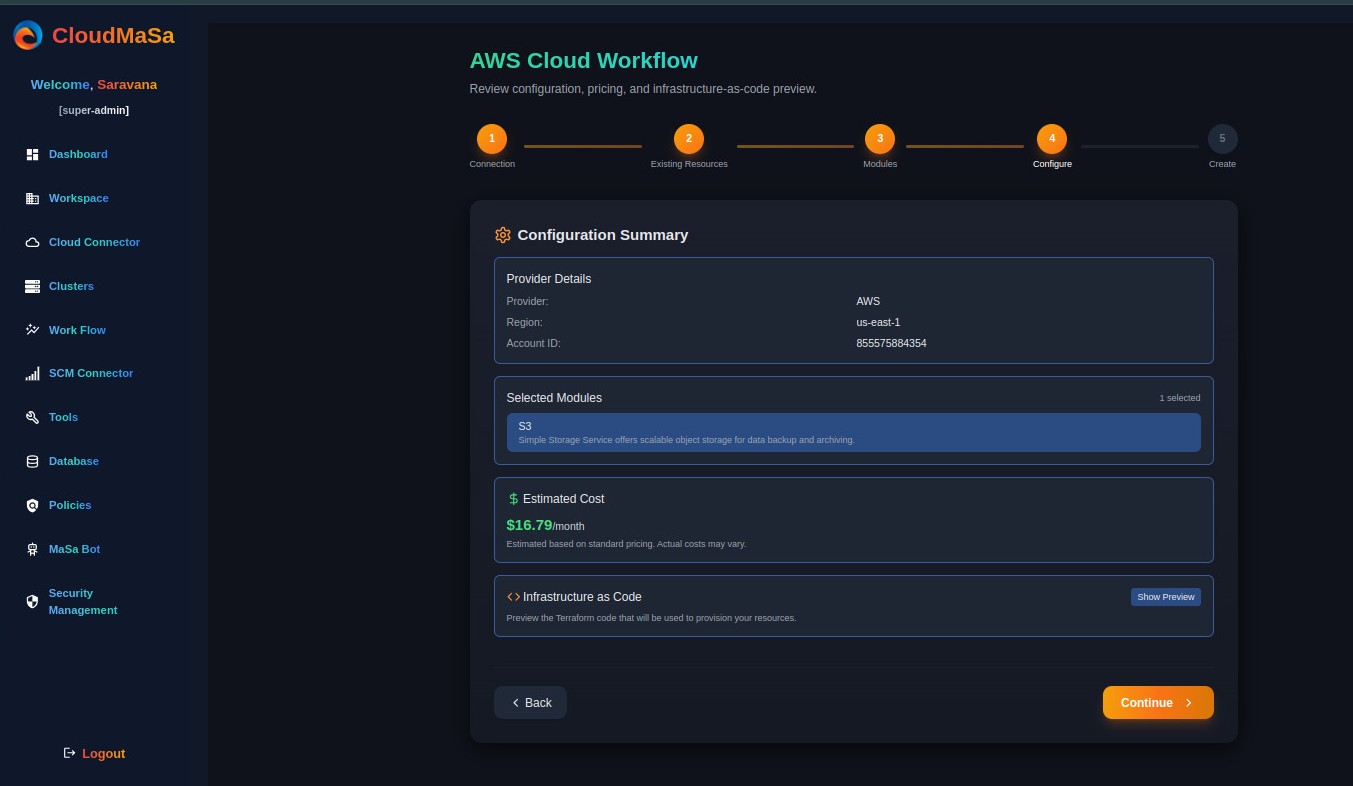
This is where CloudMaSa turns complexity into clarity. Before deploying, you get a complete preview of your configuration — including cost, code, and provider settings.
Here’s what you’ll see:
- Provider Details: AWS, region us-east-1, Account ID ***********
- Selected Module: S3 — Simple Storage Service for scalable object storage
- Estimated Cost: $16.79/month (based on standard pricing — actuals may vary)
- Infrastructure-as-Code Preview: See the exact Terraform code that will be executed — click “Show Preview” to inspect
5. Create — Deploy your infrastructure
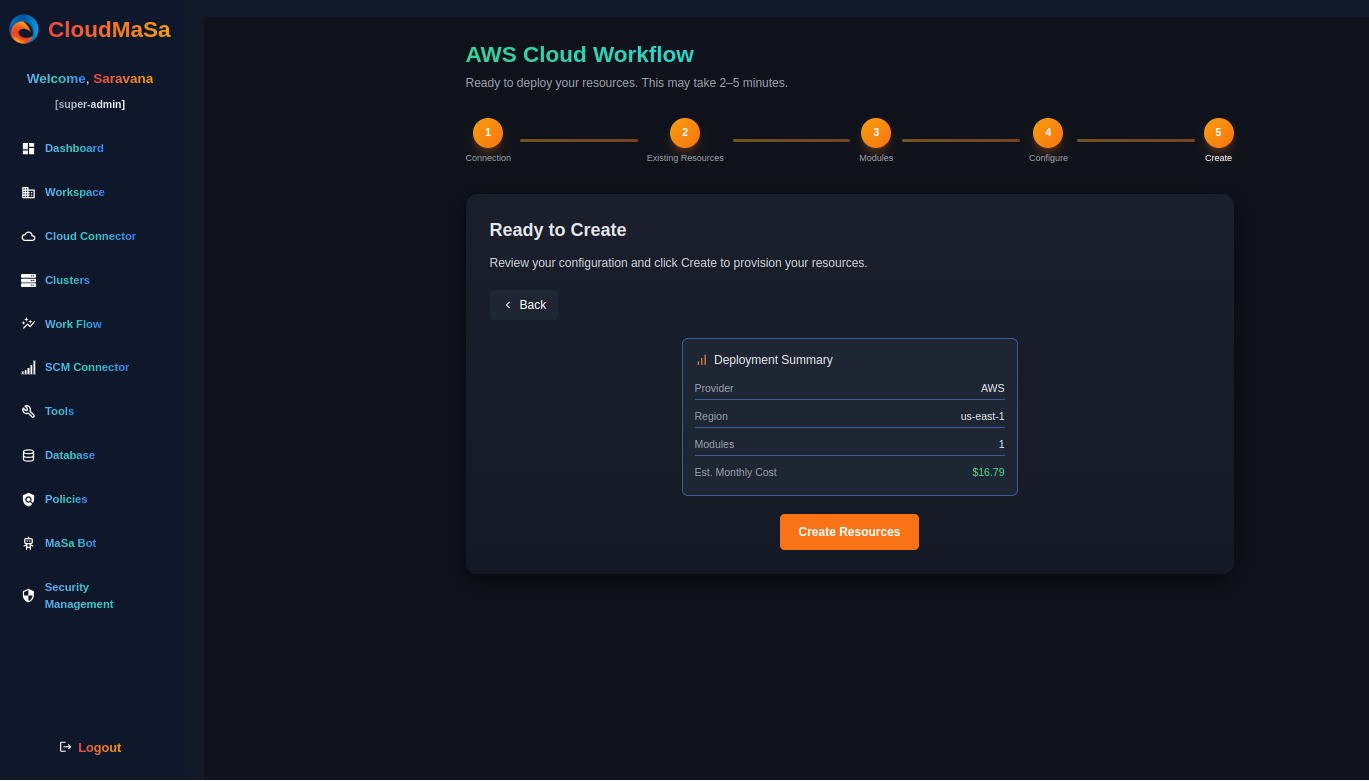
You’ve reviewed. You’ve confirmed. Now it’s time to deploy your resources — safely, predictably, and with real-time feedback.
The final summary shows:
- Provider: AWS
- Region: us-east-1
- Modules: 1 selected
- Estimated Monthly Cost: $16.79
- Click “Create Resources” — and CloudMaSa handles the rest. Deployment typically takes 2–5 minutes, depending on complexity.
💡 Pro Tip: Use Masa Bot to automate this process with natural language commands!